
DOWNLOAD · WINDOWS
DownloadDeepSeek GUI
DeepSeek GUI 1.2.0: sign in with your DeepSeek account and start.
Double-click to install, sign in with a DeepSeek account or enter an API key, then choose a project. Changes, Git, memory, skills, the built-in browser, the file sidebar, and in-place updates are right beside the conversation.
Installing over 1.1.2 or an earlier version preserves %APPDATA%\DeepSeekGUI .
A blue system prompt will appear during the first installation.The current version is not code signed yet, press Two-step diagram below to continue the installation.
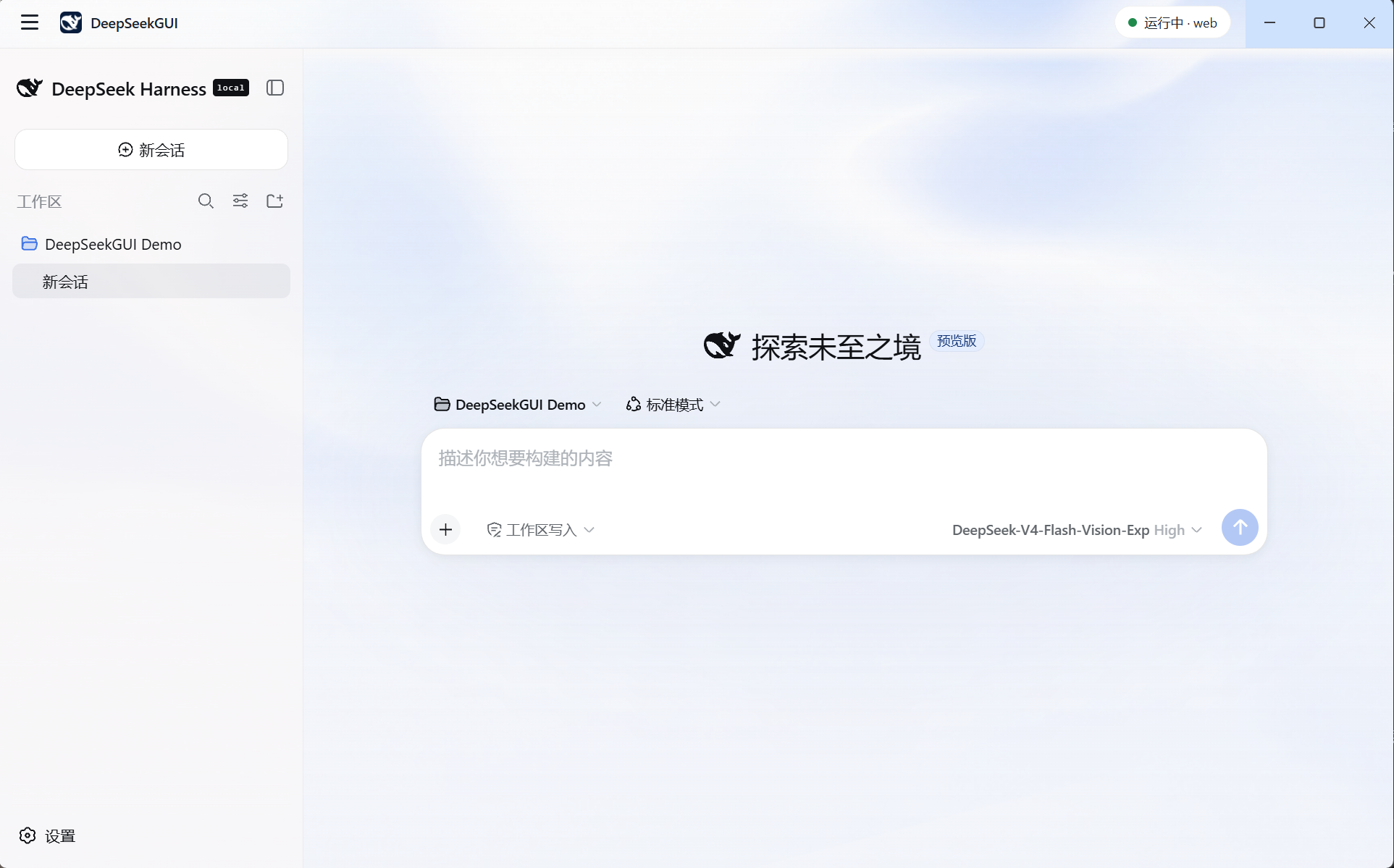
DeepSeek GUI · Windows local Workbench
FIRST RUN
If you encounter a blue pop-up window, continue the installation in two steps.
After double-clicking the installation package, Windows will pop up "Your computer has been protected". This pop-up window only displays the "Don't Run" button by default. You need to click "More Information" first before the Run button will appear.
-
The first step
Click in the lower left corner More information. This is an inconspicuous text link and can easily be ignored.
-
The second step
After the pop-up window is expanded, more still needs to run button, click it to start the installation.
This prompt comes from Windows' default blocking of unsigned applications. The SHA256 checksum of the installation package is published in GitHub Release page, you can check it before installing. Code signing will be added in subsequent versions.